
6. Operator Users
6.1 Role Management
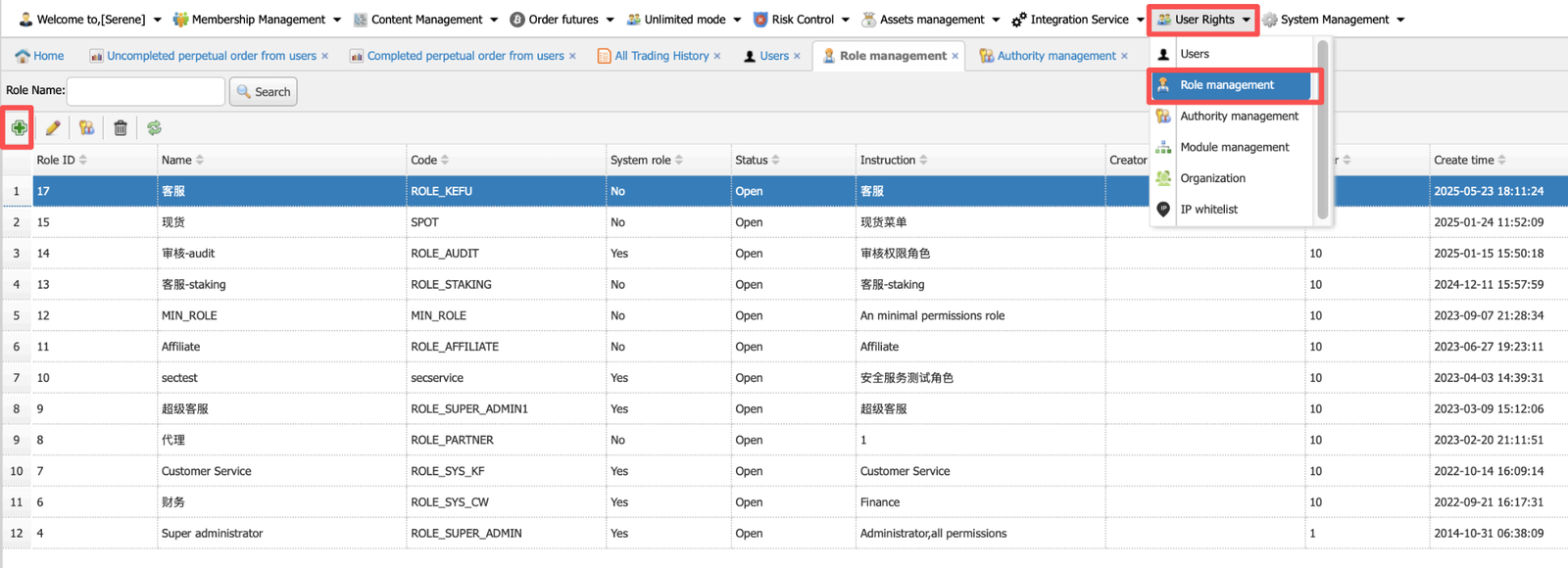
- Click on User Rights > Role Management > + button.
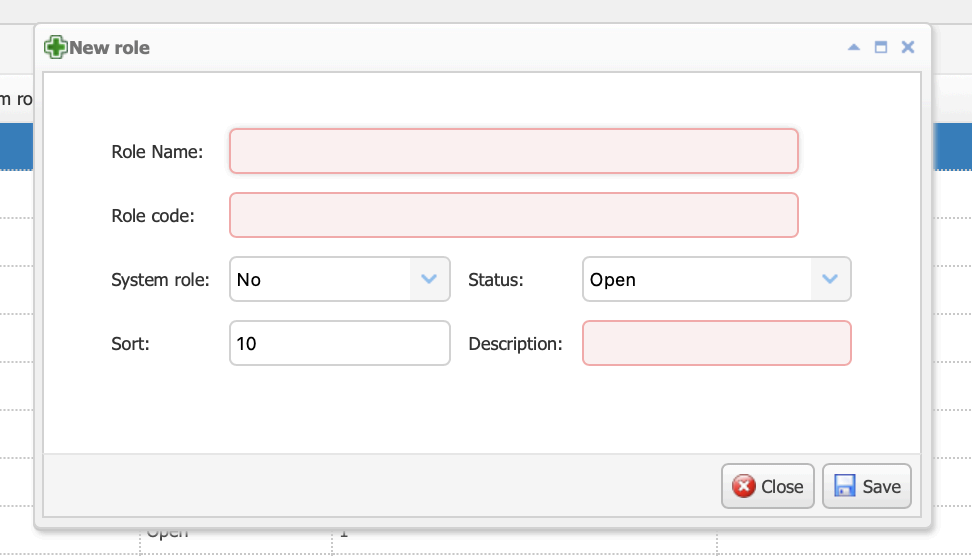
- Fill in the role details and click Save. Role name and code are for internal references.
You can set role access, for example, like finance, operations, and customer service.
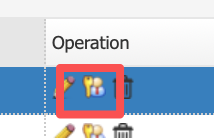
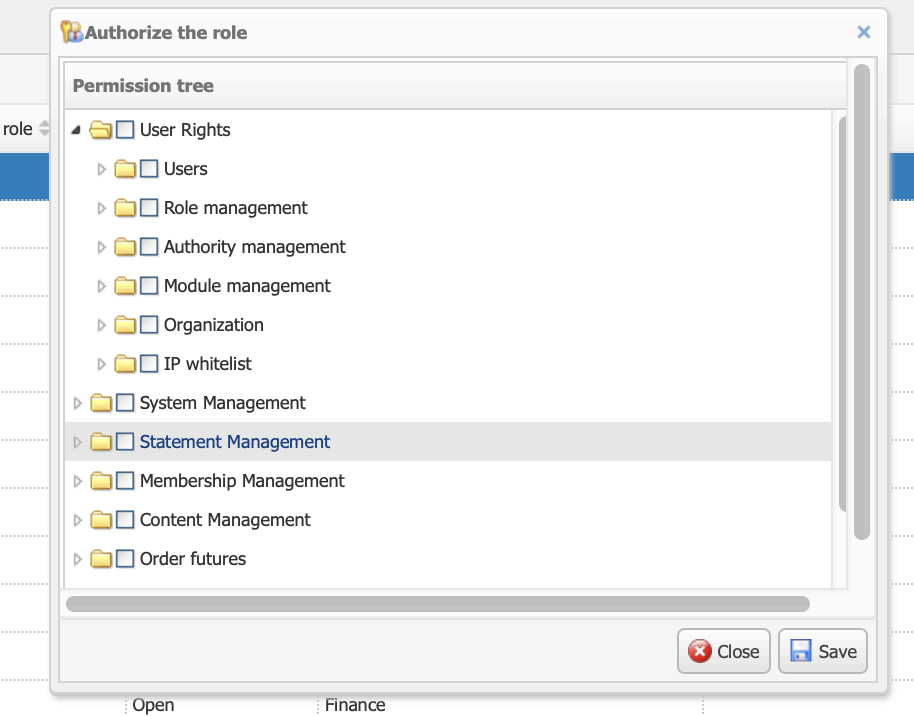
- Edit the role access permission by clicking the permissions button here.
- Select the specific role access to this role and click Save.
6.2 Add an Operation User
- *Please provide the operation static IP to the tech to whitelist before accessing the backend.
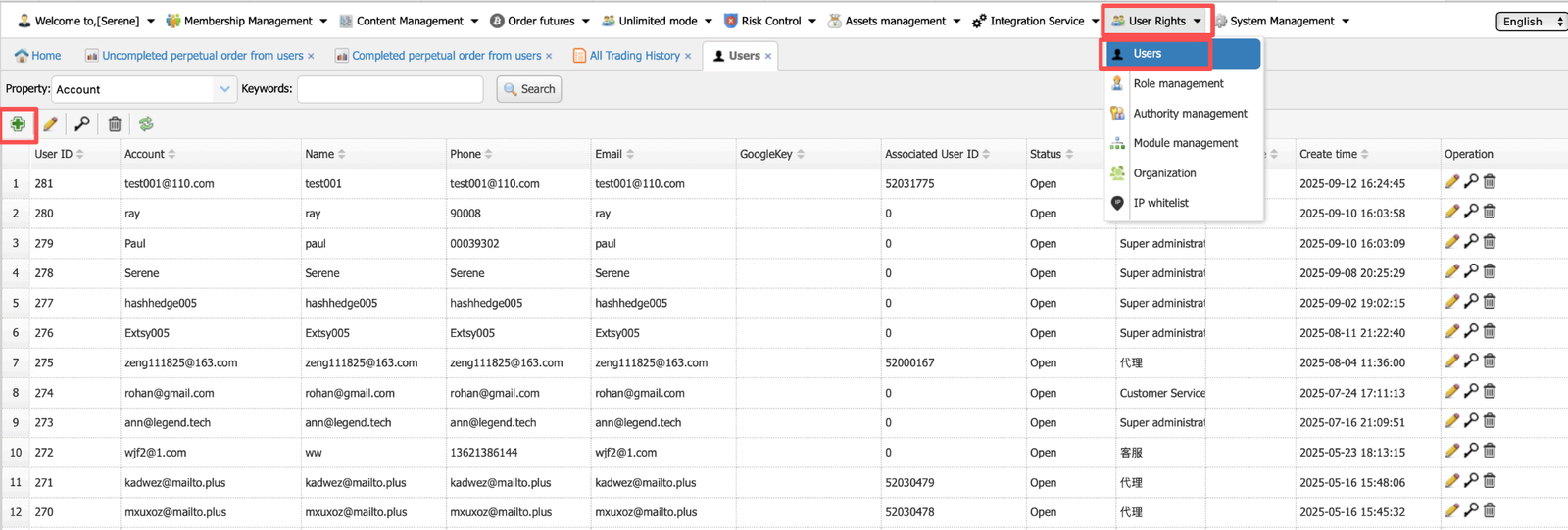
- Click on User Rights > Users > + button.
- Fill in the account details, choose the role, and click on Generate to bind the Google Authenticator QR code with his/her device. GA code is required when logging.
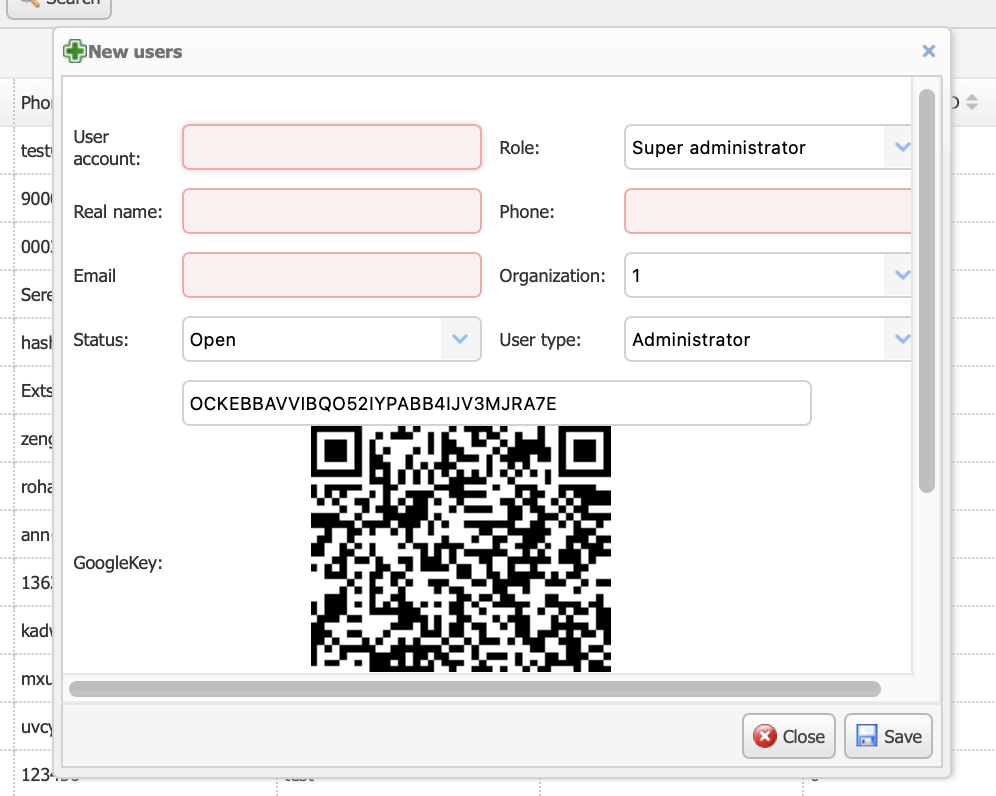
*Please enter the same value for “user account, real name,phone and email”.
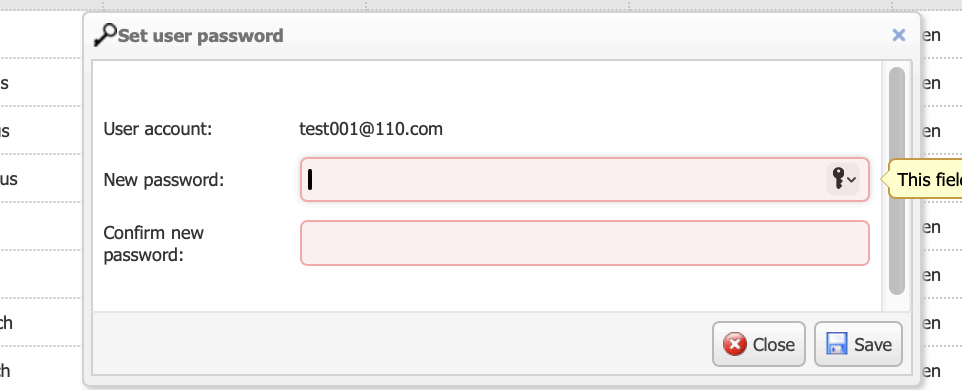
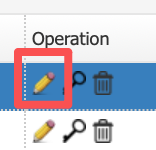
- Once it’s saved, click on the key button to set the password.
- Set the login password and click Save. Provide the username and password for the operator to log in.